Summer Sale is now on!
Tailwind CSS Buttons
There are 8 available components in this category, preview them all!
Primary
Fully responsive design
Supports dark mode
Supports color editor
HTML code snippet
React code snippet
Vue.js code snippet
Screenshot

Secondary
Fully responsive design
Supports dark mode
Supports color editor
HTML code snippet
React code snippet
Vue.js code snippet
Screenshot

Simple
Fully responsive design
Supports dark mode
HTML code snippet
React code snippet
Vue.js code snippet
Screenshot

With Icons
Fully responsive design
Supports dark mode
Supports color editor
HTML code snippet
React code snippet
Vue.js code snippet
Screenshot

With Icons Right
Fully responsive design
Supports dark mode
Supports color editor
HTML code snippet
React code snippet
Vue.js code snippet
Screenshot

Primary Contextual
Fully responsive design
Supports dark mode
HTML code snippet
React code snippet
Vue.js code snippet
Screenshot

Secondary Contextual
Fully responsive design
Supports dark mode
HTML code snippet
React code snippet
Vue.js code snippet
Screenshot

Disabled
Fully responsive design
Supports dark mode
Supports color editor
HTML code snippet
React code snippet
Vue.js code snippet
Screenshot

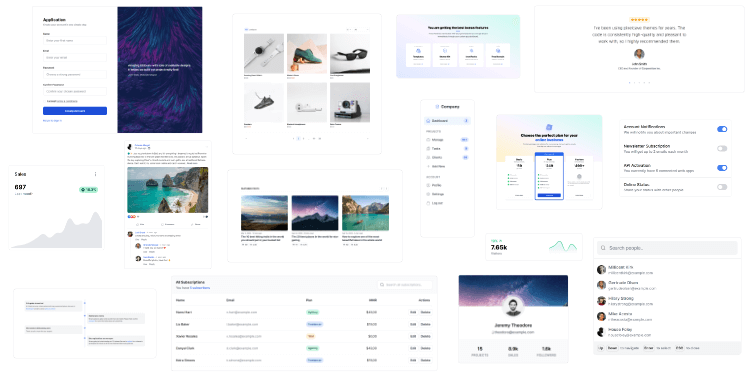
Level up your design today
1,950+ code snippets are waiting for you.
Build beautiful and super modern web applications and websites with Tailkit's huge collection of Tailwind components, templates and tools.